Learn Mobile App Dev & Mobile DevOps Here

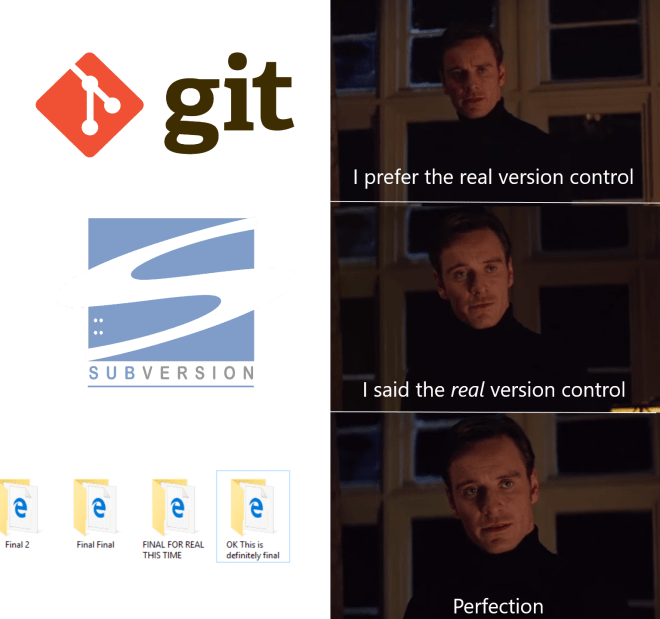
DevOps Meme

My friend Prachi tagged me on this meme on Facebook and I couldn’t agree more with her. When I started my career, my entire version control was folders – zipped, tagged and stored on multiple hard-disks. But then things changed. My guru Raj, enlightened me about advantages of version control systems. I learned about how multiple people can collaborate on projects or how errors can be reversed by going through code history if version controls like Team Foundation Server or GitHub are used. I started using those and these days, all my projects and samples are either in Visual Studio Team Services or in GitHub repository.  Going one step ahead, I’m using Visual Studio Mobile Center for DevOps along with these version control systems.

But what is this all about? How it helps in building successful mobile applications? And I thought about answering these questions in a video series. The goal is to explain mobile DevOps and different steps in mobile DevOps in small (less than 10 mins) videos.  After completing this series, you’ll be able to build cross-platform Xamarin.Forms mobile application, which will consume Microsoft Cognitive Service and set-up mobile DevOps for the same.

To follow along with this series, I’m recommending following minimum hardware/software combination:

  • Intel i5, 8GB, 50GB machine with Hyper-V support & Windows 10 Professional
  • MacBook or MacMini with i5, 4GB, 50GB for compiling iOS apps
  • Visual Studio 2017 Community Preview

With these hardware/software additional services used in this series are:

Watch the 1st video here about activating these tools & services to set-up mobile DevOps.

In 2nd video learn about how to setup build automation, using Visual Studio Mobile Center.

I’ll update this blog post in coming weeks with the 3rd video in this series, which will be about building mobile applications.

Stay tuned and subscribe to my blog/channel :)

Namaste.
Mayur Tendulkar

Mobile Mindset for five star mobile applications

These days anyone can write mobile applications. With tools like Xamarin & Visual Studio, it has become a lot easier. But for successful mobile applications, developers need to have what I call a ‘mobile mindset‘. Mobile mindset is developed gradually after using various devices and numerous mobile applications. One can learn many things from developing this mindset. So, what is this ‘mobile mindset’ all about? Let’s discuss it in this blog post.

Before Developer, Be a Consumer

The idea is to use a hell lot of mobile applications. Try breaking the boundary of famous apps and use applications which you’ve never used before. Observe the user experience. As, a number of applications you will use in daily life, you’ll get an idea of how your application needs to be designed. You can get inspired by some applications or learn from mistakes of others.

Mobile Apps != Web or Desktop Apps

In large organizations, a pool of web/desktop developers are trained to develop mobile applications. However, there is a huge difference in mobile applications and web or desktop applications. There are constraints on screen size and resolution, battery power, processing power, network connectivity and multitasking when it comes to mobile devices. Think about all these challenges before architecting mobile applications.

Screens & Navigations

In the case of desktop/web applications, users can navigate to any page or screen anytime easily because there are menus, navigation & address bars. They can even launch another application or site for some task and come back to your application. However, this luxury isn’t available in mobile apps and if the user needs to tap or swipe in your mobile app for more than 3 times to complete 1 task, perhaps it is a high time for you to redesign the flow of your application. When it comes to screen, try to avoid distractions. Heavy use of multiple navigations, controls on the screen, advertisement banners can lead to bad user experience. There are guide available for user experience and navigation patterns. Learn about them and see which one suits for your application. And remember, more screens, more swipes and bad user experience can lead to unhappy users.

mobile-mindset-02

User-Friendly Interface

As compared to desktop or laptops, mobile devices have a small screen. It is often called as ‘screen real estate’. Use it wisely. Make controls and ‘next steps‘ discoverable. Use controls which can expand and contract depending on usage. Give hints to the user. Your app has failed if the user has to ‘google’ next steps or read the user manual to use your app.
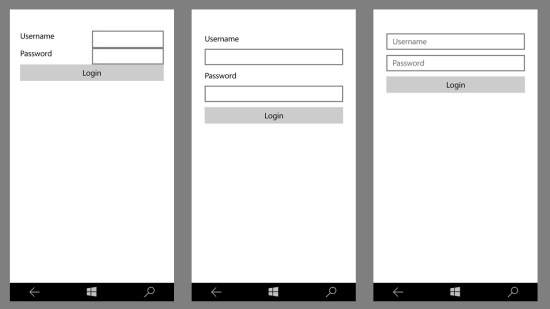
mobile-mindset-01

Data – As & When Required

If the user is going to launch your app for the first time, treat him with respect. Don’t collect all the user details. If needed, by providing ‘privacy policy‘, ask for only required details to register with your app or service (e.g. age, email, phone, password) and get him onboard. Once onboarding is complete, depending on requirements gather the necessary information (e.g. preferences, network, etc).

On the other side, when required, download contextual data. It doesn’t make sense to download the entire brochure of products when the user is only interested in check out with the items in his cart. Use paging, pull-to-refresh mechanisms to download the data while confirming available bandwidth. A user may be connected to a high-speed wifi network or may be connected to 4G network on roaming. This can be a costly affair.

Having said that, remember, if it takes more than a minute to get to the first screen of your application when the user launches it for the first time, probably, he’ll switch to other similar application or service.

Use Feedback Channels

Before publishing your application to the store, use tools like HockeyApp to conduct beta testing. Distribute your application privately and check the impact. Include crash analytics. And once testing phase is complete, release it to the store. Because once the application is available in the store, users will download it, use it. But when it will crash, seldom they will report it. But definitely, rate it 1 star. Without annoying, ask user to rate your app. Users talking about your apps is the best marketing for your app you can get for free.

Analyse

Don’t just publish your app in the store and leave it for sinking. Use tools like Application Insights, HockeyApp, etc… which can provide details about app launches, app crashes, unique visitors. You can add code to customize the data collected like gender, age, location, preferences of the user. Consider providing ‘privacy policy‘ and notify user about collecting this information. Once you collect that data, analyze it and depending on that provide customized services to your users. Your users will be happy to receive customized offerings. But don’t overdo it.

These are some of the basics of mobile application development, which helps to build ‘mobile mindset’. Thanks to Dipankar, Pooja & Prashant for their valuable feedback over this post. Try these tips in your next mobile app and let us know your feedback through comments.

Enjoy building mobile apps. Happy coding.

Namaste,
Mayur Tendulkar

The Case of REST & Azure Resource Manager APIs

There are two kinds of people in this world. One who love ready made SDKs and then there are others who love to work on pure REST APIs. I’m from the 1st category. :)

The reason behind using SDKs is they include pure abstracted API calls. For example, if you use Active Directory Authentication Library (ADAL), it has AcquireTokenAsync method. This method, if you call, takes just couple of lines of code and makes your life much more easier.

However, behind the scenes, this method does a lot of stuff. For example, in case of Windows apps: calling WebAuthenticationBroker, launching Web UI, handling app navigation, etc. Similarly, it does same thing, in iOS and Android. But that entire code base is repetitive in every app which is going to use Active Directory for login. Now, one may ask, why so many calls are made just to authenticate and acquire token or as we progress through this blog post, why so many calls are required to perform basic operations. The answer lies in purity of REST APIs. And ADAL makes life easier here by providing one method doing all this for you while abstracting all the details.

When I was working on my blog post Monitor Azure Resource Usage and Predict Expenses, there was no SDK available for Azure Resource Manager (ARM) and the old API was not an ideal way to handle Resource Management APIs.

So, I had to write an app from scratch to get ARM working in my sample and here my friend Gaurav Mantri (@gmantri) helped me a lot. Gaurav founded Cloud Portam, which helps to manage resources in Azure like Storage, Search, etc… Thanks to him, I could understand the flow and I’m going to put it here on this blog post.

Step 1: Authenticate with Common

ARM allows you to manage resources within subscription and subscription is now part of your Active Directory. So, the first thing that you need to do is to authenticate with right Active Directory. This is simple if you’ve just one subscription and one Active Directory in your subscription, but if you’ve multiple subscriptions/active directories, you may want to iterate through them and get separate access tokens. To avoid this, first we hit the ‘common’ endpoint and then get the Tenants available.

Step 2: Get Tenants

As a user, your user account may be associated with multiple active directories. A tenant is nothing but an active directory to which you have access. Here, in this step we get all active directories first by calling below method. Later on we’ll try to fetch subscription (if available) from each directory.

private async Task GetTenants()
{
var requestUrl = "https://management.azure.com/tenants?api-version=2015-01-01";
try {
var tenantResponse = await client.GetStringAsync(requestUrl);
tenantCollection = JsonConvert.DeserializeObject<TenantResponse> (tenantResponse);
}
catch (Exception ex) {
await DisplayAlert("Error!", ex.Message, "Dismiss");
}
foreach (var tenant in tenantCollection.TenantCollection) {
await GetSubscriptions (tenant.TenantId);
}
}

Step 3: Get Subscriptions

Once we get tenants, each tenant may have subscription on which we may want perform some actions. To do so, we pass each tenant ID from GetTenants() to this method and acquire new token silently (without login prompt)

private async Task GetSubscriptions(string tenantId)
{
var requestUrl = "https://management.azure.com/subscriptions?api-version=2015-01-01&quot;;
try {
var data = await DependencyService.Get<IAuthenticator> ().AuthenticateSilently (tenantId,
App.ManagementResourceUri, App.ClientId);
client.DefaultRequestHeaders.Authorization = new System.Net.Http.Headers.AuthenticationHeaderValue("Bearer", data.AccessToken);
var subsriptionResponse = await client.GetStringAsync (requestUrl);
var subscriptions = JsonConvert.DeserializeObject<SubscriptionResponse>(subsriptionResponse);
foreach (var subscription in subscriptions.SubscriptionCollection) {
SubscriptionCollection.Add(subscription); }
IsFirstRunComplete = true; }
catch (Exception ex) {
await DisplayAlert("Error!", ex.Message, "Dismiss"); }
}

Step 4: Call ARM APIs

In order to perform management operations on an Azure Subscription, a user must be authenticated and authorized. Authentication part is handled by Azure Active Directory. There is a one to many relationship between an Azure AD and Azure Subscription. i.e. an Azure AD can be used as an authentication store for many Azure Subscriptions however authentication for an Azure Subscription can happen only with a single Azure AD. Once a user is authenticated with an Azure AD, next step is to find out a list of Azure Subscriptions the logged in user has access to. This is what we’re doing in this step. What a user can do in each of these subscriptions (i.e. the authorization part) can be accomplished by using Azure Resource Manager (ARM) API’s Role-based access control (RBAC).

var requestUrl = String.Format("https://management.azure.com/subscriptions/{0}/providers/Microsoft.Commerce/UsageAggregates?
api-version=2015-06-01-preview&reportedStartTime={1}&reportedEndTime={2}&aggregationGranularity=Daily&showDetails=false",
App.SelectedSubscription.SubscriptionId, startTime, endTime);
var usageData = await client.GetStringAsync (requestUrl);
var data = JsonConvert.DeserializeObject<AzureTracker.Model.UsageResponse> (usageData);

Now you can replace your code in Step 4 to manage or monitor resources in your Azure subscription, but the flow will not change. The entire list of APIs covering resources and possible operations on them is available here

I hope this post will helps you to understand the model behind ARM API calls.

Namaste,
Mayur Tendulkar